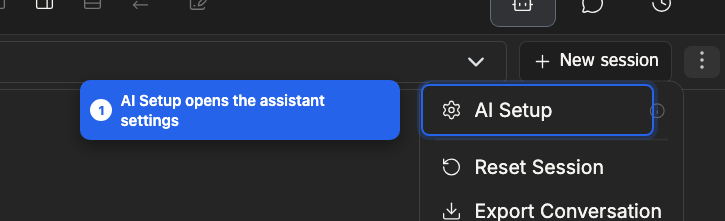
Open the settings from the three-dot menu in the assistant panel and choose AI Setup. They live in the AI group of the settings dialog. Some tabs apply to your account and some to the current project.
Account tabs
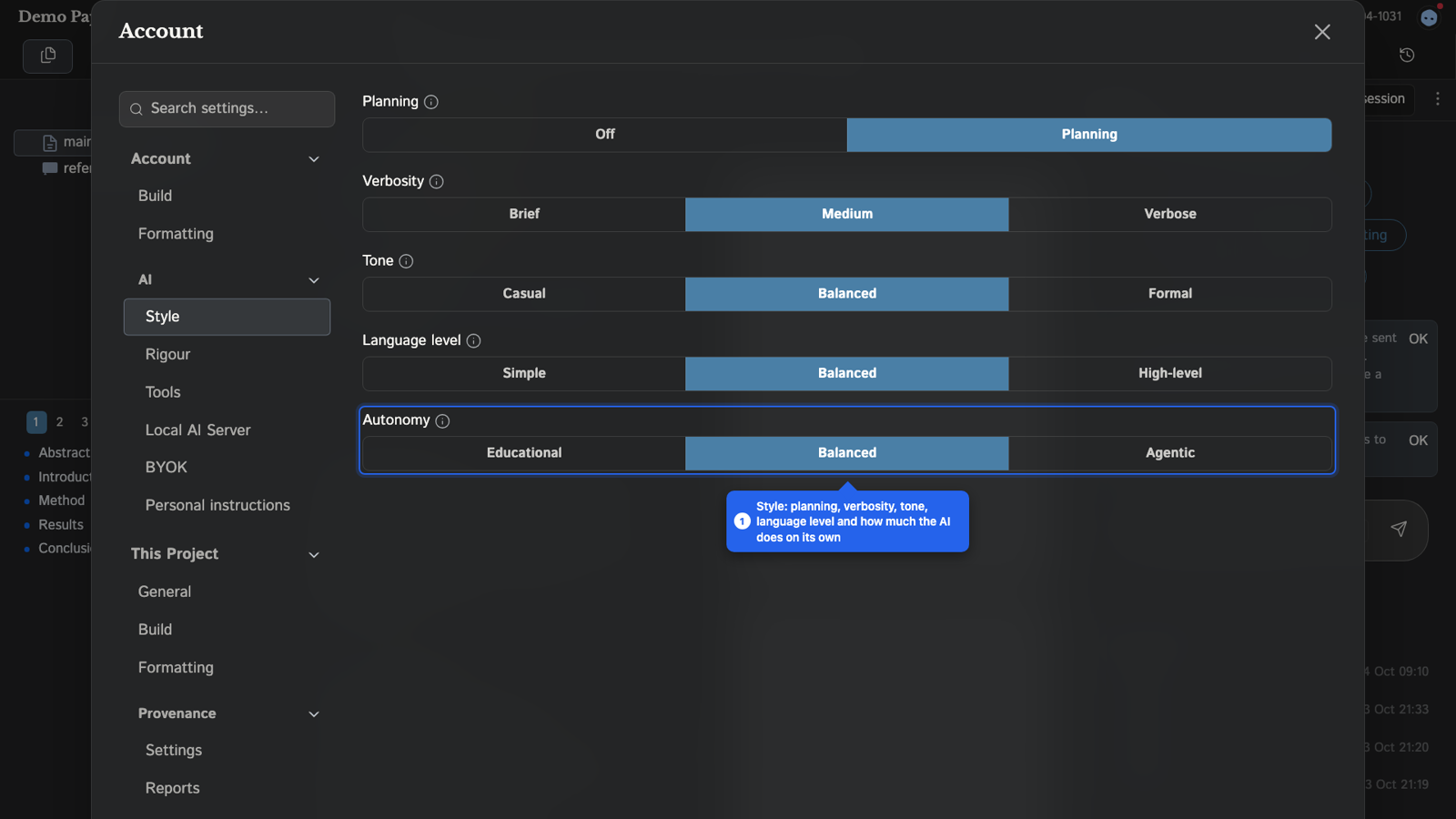
Style
These settings shape how the assistant writes back.
- Planning: Planning is the default. The assistant writes a plan first and follows it for every task. Off is one-shot: no plan, it acts straight away. Use Planning for multi-step requests and Off for quick back-and-forth.
- Verbosity: Brief, Medium or Verbose.
- Tone: Casual, Balanced or Formal.
- Language level: from Simple to High-level. High-level means scientific and technical vocabulary with no simplification.
- Autonomy: Educational means the assistant teaches and handles mundane tasks only, while you do the writing and decisions. Agentic means it drives the work end to end with minimal check-ins.
Rigour
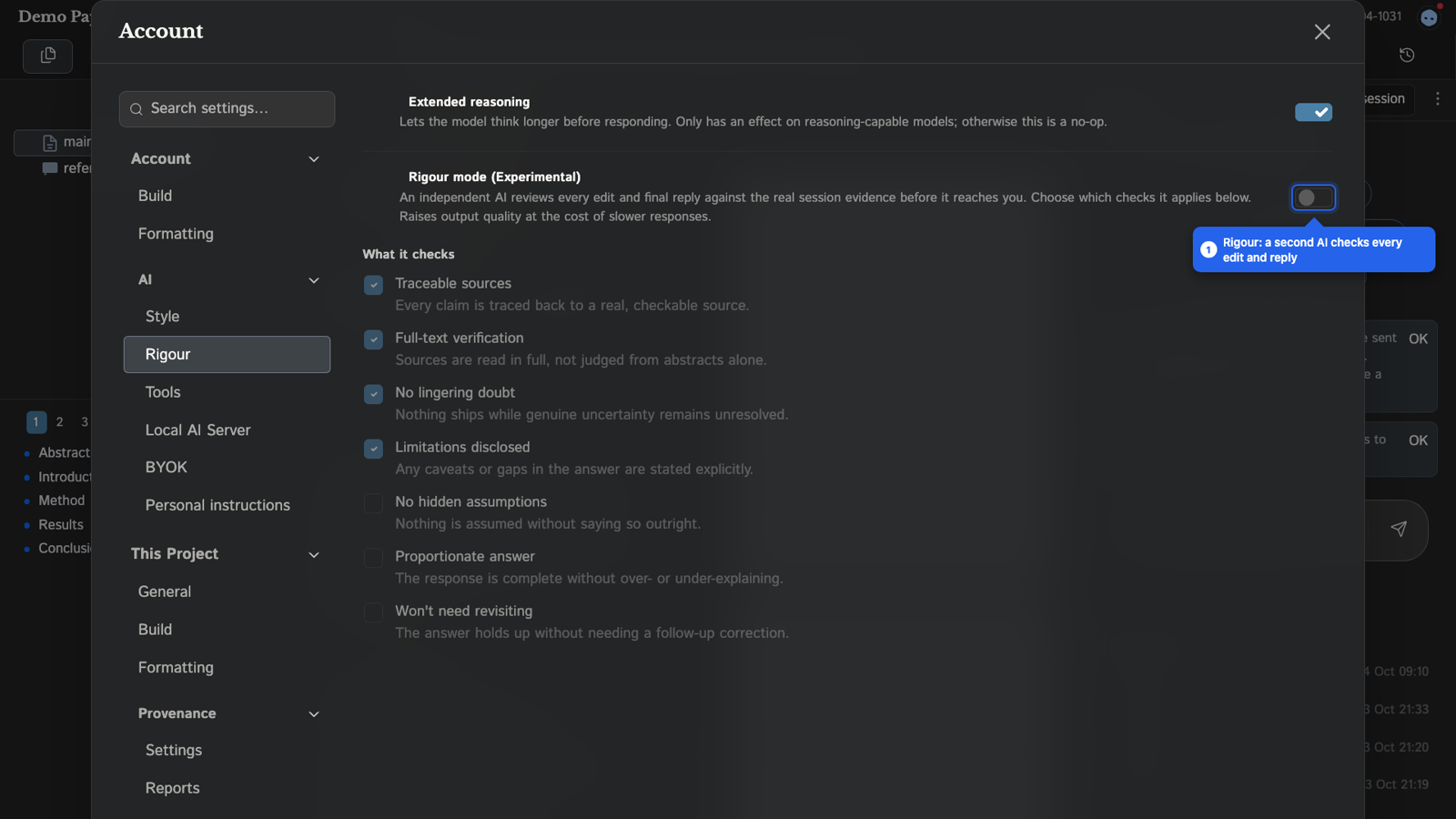
Rigour mode (experimental) has an independent AI review every edit and the final reply against the real session evidence before it reaches you. It raises quality at the cost of slower responses. You choose which checks apply:
- Traceable sources
- Full-text verification
- No lingering doubt
- Limitations disclosed
- No hidden assumptions
- Proportionate answer
- Won't need revisiting
Tools
Core tools are always available. On-demand tools, such as web search, citation and arXiv search, sub-agents and cross-project access, are loaded only when a task needs them. Turn one off to stop it being used at all this session.
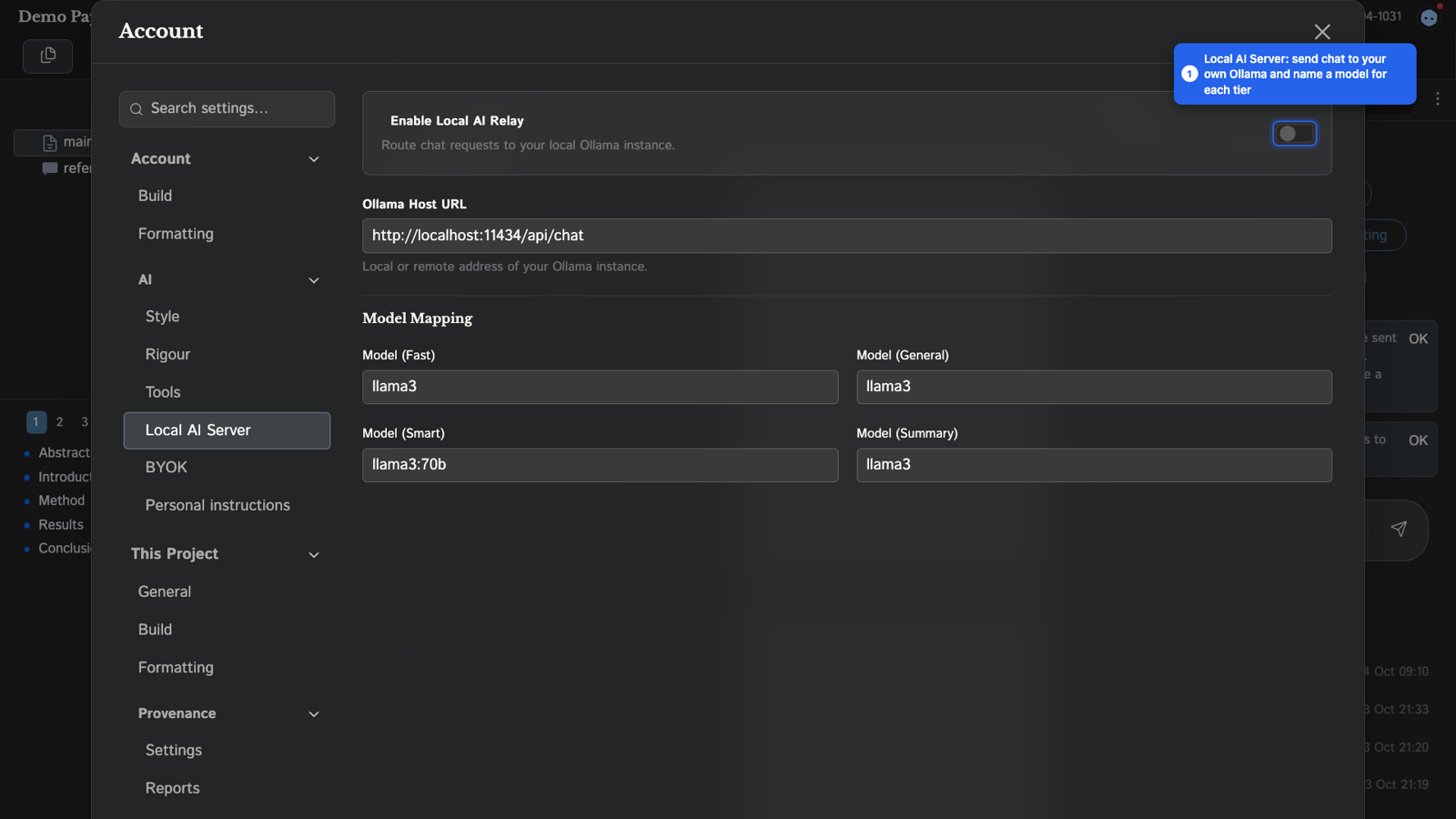
Local AI Server
Routes chat requests to your own Ollama instance. Turn on Enable Local AI Relay, set the Ollama Host URL, and choose a model for each of Fast, General, Smart and Summary. See Using Ollama.
BYOK
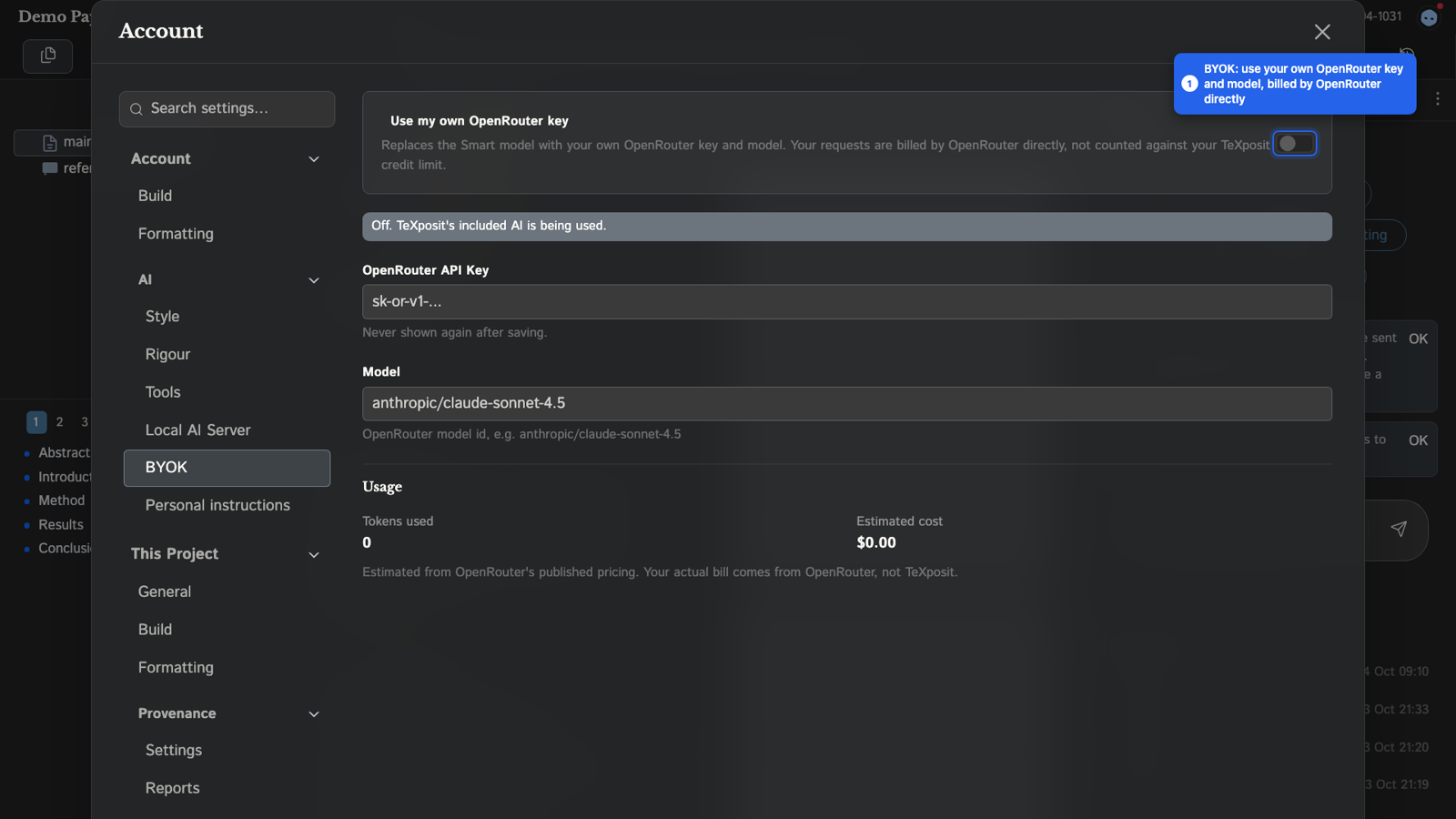
Use my own OpenRouter key replaces the Smart model with your own OpenRouter key and model, for example anthropic/claude-sonnet-4.5. OpenRouter bills you directly, and these requests do not count against your TeXposit credit limit. The key is never shown again after saving. The tab also shows tokens used and an estimated cost based on OpenRouter's published prices.
Personal instructions
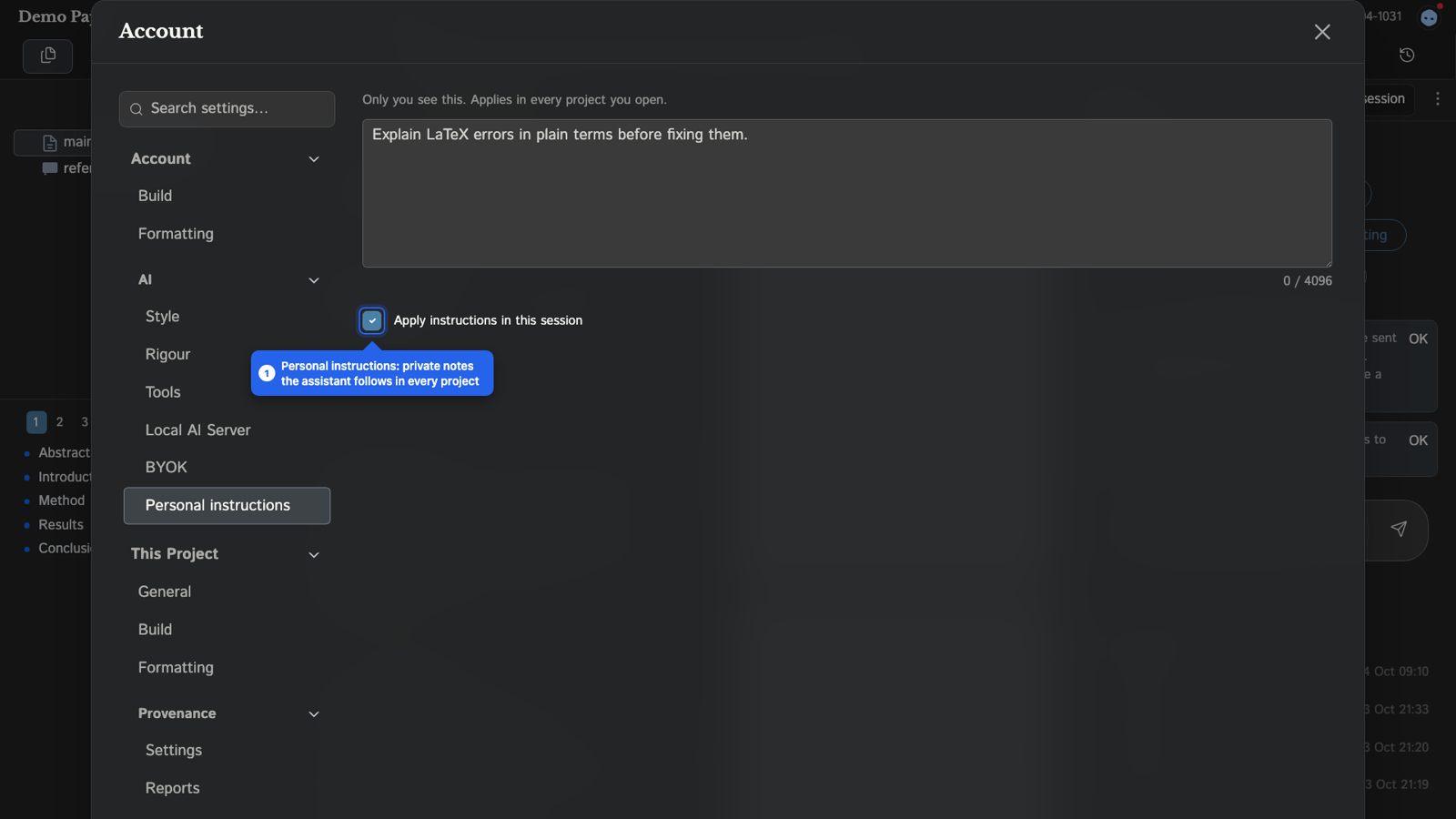
Free text that only you see. It applies in every project you open, for example "Explain LaTeX errors in plain terms before fixing them."
Project tabs
General
Enable AI assistant for this project turns off the chat assistant, inline suggestions, selection edits and auto-fix for the project. Skills and instructions stay saved.
Instructions
Project instructions are shared with everyone on the project and versioned with it, stored in .texposit/instructions.md. Put conventions and boundaries here:
# Project instructions

## Conventions
- Cross-references: use \cref (cleveref is loaded).
- Citations: \citep / \citet (natbib, author-year).
- British spelling.

## Boundaries
- Do not edit preamble.tex. Ask first.
Draft from project has the assistant read your project and propose a first version. Apply instructions in this session lets you turn instructions off for one session. With viewer or reviewer access, instructions are read-only.
Skills
Skills are playbooks the assistant loads when a task matches, such as a citation style, LaTeX conventions or a writing workflow specific to the project. Create one with New skill. The name uses lowercase letters, numbers and hyphens, and cannot be changed afterwards. Deleting a skill can be undone from the project history.
Extended reasoning
Type /thinking in the chat to toggle extended reasoning, which lets the model think longer before responding. It has an effect only on reasoning-capable models.
Organisation limits
If you use TeXposit through an organisation, an administrator can disable the assistant, or the customization settings (instructions and skills), for everyone. Those controls then do not appear.