Several people can have the same file open at once. Edits reach everyone as they type, and you see where each person is working.
Invite collaborators
- In the editor, open File and choose Share Project. The project settings open on the Share tab.
- Under Invite New Collaborator, enter an email address.
- Pick a role and click Invite.
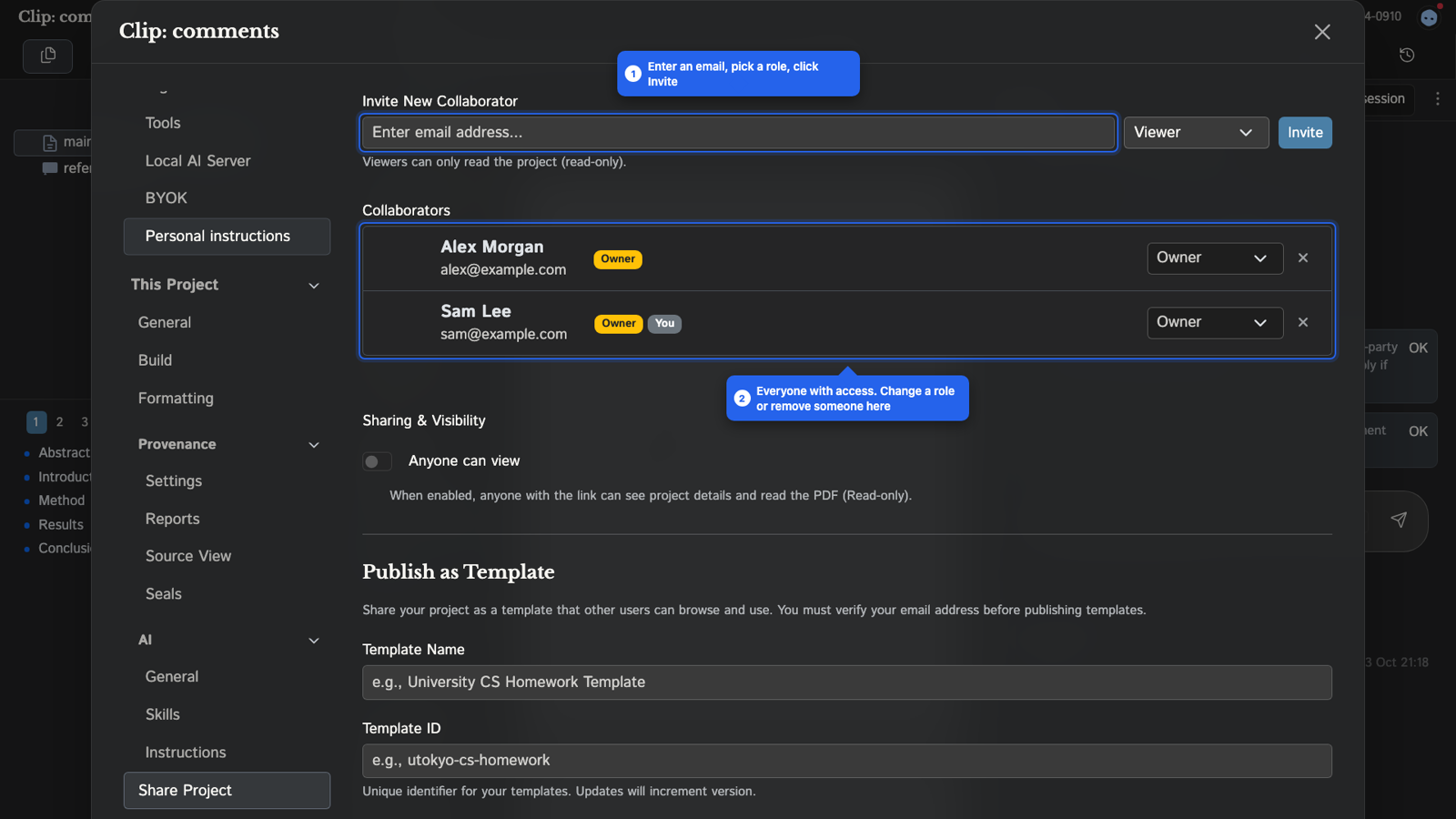
The Collaborators list below shows everyone with access. You can change a person's role there or remove them. Only the project owner manages sharing.
Roles
- Viewer can read the project and nothing else.
- Reviewer can comment and chat. Their edits are never applied directly: they are always recorded as suggestions for an editor to accept or reject. See Comments and suggestions.
- Editor can edit and compile files. Editors cannot manage sharing or collaborators.
Public view link
Under Sharing & Visibility, turn on Anyone can view to get a link. Anyone with the link can see the project title, description and PDF, read-only. Source files stay private.
Working together
When someone else has a file open, a panel appears under the file tree with:
- an avatar for each person in the file; hover for the name, click to open their profile
- a message field for quick chat with everyone in the project
- a split-view toggle, to watch a collaborator's file next to your own
In the editor you see each collaborator's caret, with their name, and their selection. Edits sync as people type.
TeXposit applies edits as patches against a version number. If your copy falls behind, the edit is rejected and your editor re-syncs to the server's text instead of overwriting it. Two people editing the same line can still step on each other, so agree who works on which section.
Tips
- Give each person a section to write.
- Ask reviewers to comment rather than edit. The Reviewer role enforces this.
- Use chat for quick questions instead of email.